
Enterprise Email Migration Service: Troubleshooting Switchover Anomalies and Implementation Checklist
Enterprise Email Migration Service: Troubleshooting Switchover Anomalies and Implementation Checklist
When a foreign trade or cross-border team initiates an enterprise email migration service, the process rarely goes without a hitch. A common scenario involves an IT administrator switching the MX records over the weekend, only to face a wave of anomalies on Monday morning: Outlook clients failing to sync, historical folders missing, or critical overseas emails bouncing.
Rather than treating migration as a simple "flip the switch" task, IT teams must approach it as a structured troubleshooting and validation process. This guide diagnoses common switchover anomalies using a conditional comparison framework and provides a practical checklist for implementing 138 Enterprise Email migration smoothly.
Diagnosing Migration Anomalies: Legacy Limits vs. Switchover Errors
Before executing the migration, it is crucial to distinguish whether an anomaly stems from the legacy system's limitations or the transition process itself.
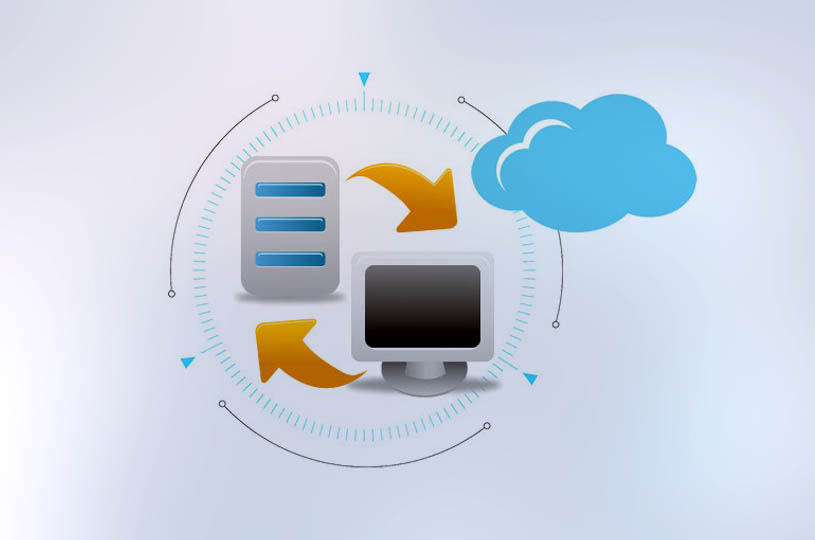
Condition 1: Data Export and Sync Failures
- Symptom:*
- Historical emails, aliases, or mail groups fail to transfer to the new environment.
- Legacy Cause:*
- The old system restricts export permissions, enforces strict API rate limits, or lacks standard IMAP/POP3 support for bulk extraction.
- Transition Cause:*
- Incomplete account mapping or mismatched folder structures during the batch import.
- Resolution:*
- Before switching, establish a comprehensive data inventory and acceptance criteria, including accounts, domains, aliases, mail groups, contacts, historical emails, folders, rules, and business system sending sources. Conduct a small-scale migration test without changing the MX records to verify data integrity.
Condition 2: Email Bounces and Delivery Delays
- Symptom:*
- Senders receive non-delivery reports (NDRs), or emails are routed to the old system.
- Legacy Cause:*
- Hardcoded routing rules or outdated SPF records in the legacy DNS.
- Transition Cause:*
- DNS propagation delays or incorrect MX priority settings.
- Resolution:*
- Lower the DNS TTL (Time to Live) value 24 to 48 hours before the switchover and prepare rollback records. Maintain parallel operation of the old and new systems during the propagation window to prevent email loss.
Condition 3: Third-Party Client Connection Rejections
- Symptom:*
- Users cannot log in via Outlook, Foxmail, or mobile native mail apps after migration.
- Legacy Cause:*
- Users are accustomed to legacy server addresses or outdated authentication methods.
- Transition Cause:*
- Incorrect port configurations, missing SSL/TLS encryption, or failure to use client-specific passwords.
- Resolution:*
- When configuring third-party clients, verify the server address, ensure the username is the full email address, confirm SMTP authentication requirements, check SSL/TLS types and ports, and determine if a client-specific password is required.
Implementation and Troubleshooting Checklist
To ensure a secure and compliant transition to 138 Enterprise Email, follow this step-by-step checklist designed for enterprise IT administrators and cross-border business operators.
Phase 1: Pre-Migration Inventory
- Verify domain and DNS management permissions (ability to modify MX/TXT/CNAME records).
- Audit all administrator and user accounts, including aliases and forwarding rules.
- Confirm the legacy system's export permissions, expiration dates, and data retention policies.
- Identify critical overseas recipients and schedule an appropriate downtime window.
Phase 2: Controlled Switchover
- Build the account mapping table and establish an acceptance baseline on 138 Enterprise Email.
- Pre-create accounts and execute a pilot migration test while keeping the original MX records intact.
- Lower DNS TTL and prepare rollback DNS records.
- Switch MX and related sender authentication records (SPF, DKIM, DMARC).
- Monitor both old and new systems in parallel to catch any emails routed to the legacy server during DNS propagation.
Phase 3: Post-Migration Verification
- Verify that all target accounts can log in via Web, 138 Mobile App, 138 PC Client, and third-party standard protocol clients.
- Confirm new email sending and receiving, especially to critical overseas domains.
- Check that historical email counts and sampled content match the baseline, and ensure key attachments open correctly.
- Validate that SPF, DKIM, and DMARC are active and functioning as planned to prevent spoofing.
- Generate a log of failed, skipped, or duplicate emails for manual remediation.
- Obtain formal business confirmation before terminating the legacy email service.
Boundaries and Risk Management
While 138 Enterprise Email supports migrating original domain addresses and historical data, IT teams must recognize practical boundaries. The actual migration scope depends heavily on the legacy system's protocols, data quality, account permissions, and the specific service plan. It is impossible to guarantee absolute zero downtime or zero data loss in every complex enterprise environment. Therefore, maintaining a rollback plan and securing business sign-off at each milestone is mandatory. Furthermore, for high-risk operations like changing payment account details received via email, always enforce out-of-band secondary verification, as no email system can entirely replace internal approval workflows.
Next Steps
A successful enterprise email migration service relies on meticulous planning, rigorous testing, and proactive anomaly troubleshooting. If your foreign trade team or enterprise is preparing to upgrade to a secure, globally routed, and multi-device compatible email system, start by auditing your current DNS and legacy export capabilities.
Contact the 138 Enterprise Email official direct-operated support team to confirm your specific migration scope, protocol compatibility, and implementation schedule today.
Recommended
Qianhai Insurance Selects 138 Enterprise Email – Case Study
Qianhai Property & Casualty Insurance, a nationally licensed property insurer approved b...

Cross-border E-commerce GUORLAN Chooses 138 Enterprise Email
Cross-border e-commerce company GUORLAN migrated from its legacy email system to 138 Ent...

Lac Hao Electronics Vietnam Enterprise Email Case Study
Lac Hao Electronics Vietnam is an electronics company exporting products to North Americ...